Reminder that Higher Origins is only available to licensed California Cannabis businesses and currently does not offer support tinany other state
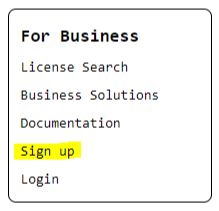
On any public Higher Origins page, scroll to the bottom of the page and click the [Sign Up] button in the “For Business” box to go to the Sign Up page.
On the Sign Up page, fill in the following information:
For your name, use your real name, the one you used when you got your California Cannabis License
For your Email, use an email address you check often
For your phone number, use a reliable number, this lets us contact you in the case of an issue with your account.
Enter your METRC API key. If you need help finding it, read this doc here. We need this to verify that you are a California License holder and link your METRC data to your account.
Enter a secure password. We recommend the use of a high quality password manager for security and convenience.
When finished, click [Get Started] to proceed to email verification.

The email verification page looks like this:
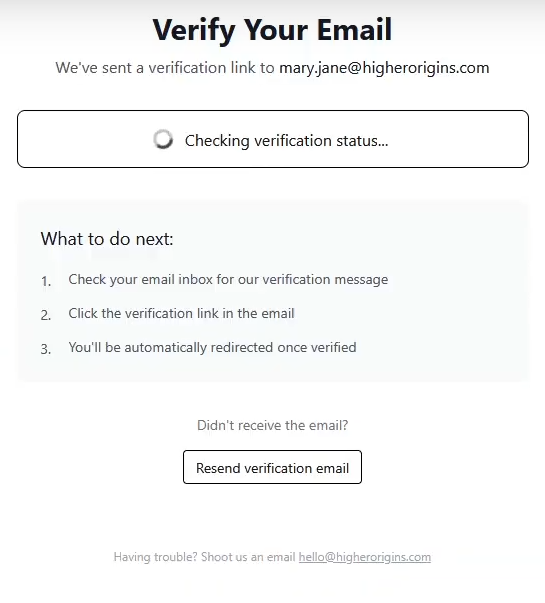
Check your email inbox for the email you entered. The email should have the subject line "Verify Your Higher Origins Account". If you don't see it after a few minutes, double check your spam folder, and if it isn't there, click the resend button on the email verification page, or if the problem persists email us at [email protected] and we'll fix it. The email should look like this:
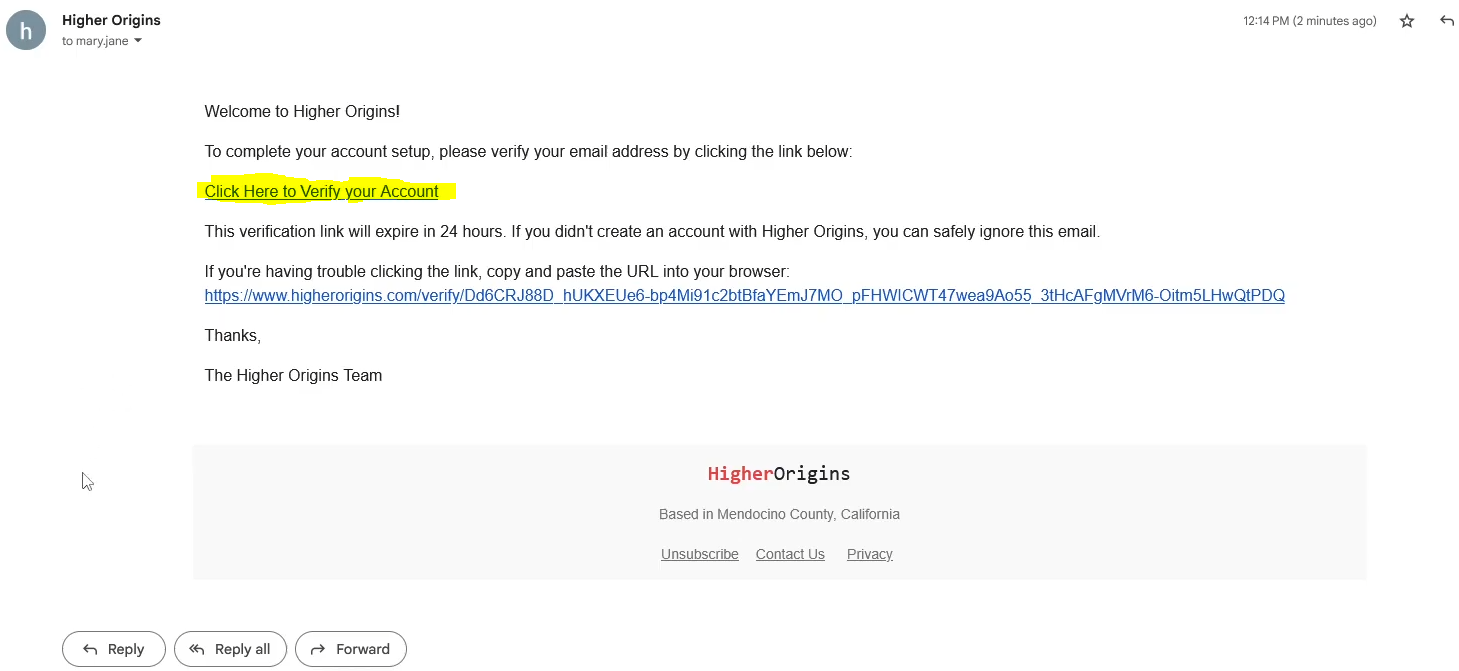
Click the highlighted link and it will verify your email and take you to this confirmation page:

Click "Continue to Login" to continue to the business information setup page.
On the business information setup page please enter the following:
For business name, enter the public name of your business, the one you want customers to know you by.
Enter your business address.
Enter the city in which your business is located.
Enter the state in which your business is located (Currently we only work with Californian businesses).
Enter the postal code in which your business is located.
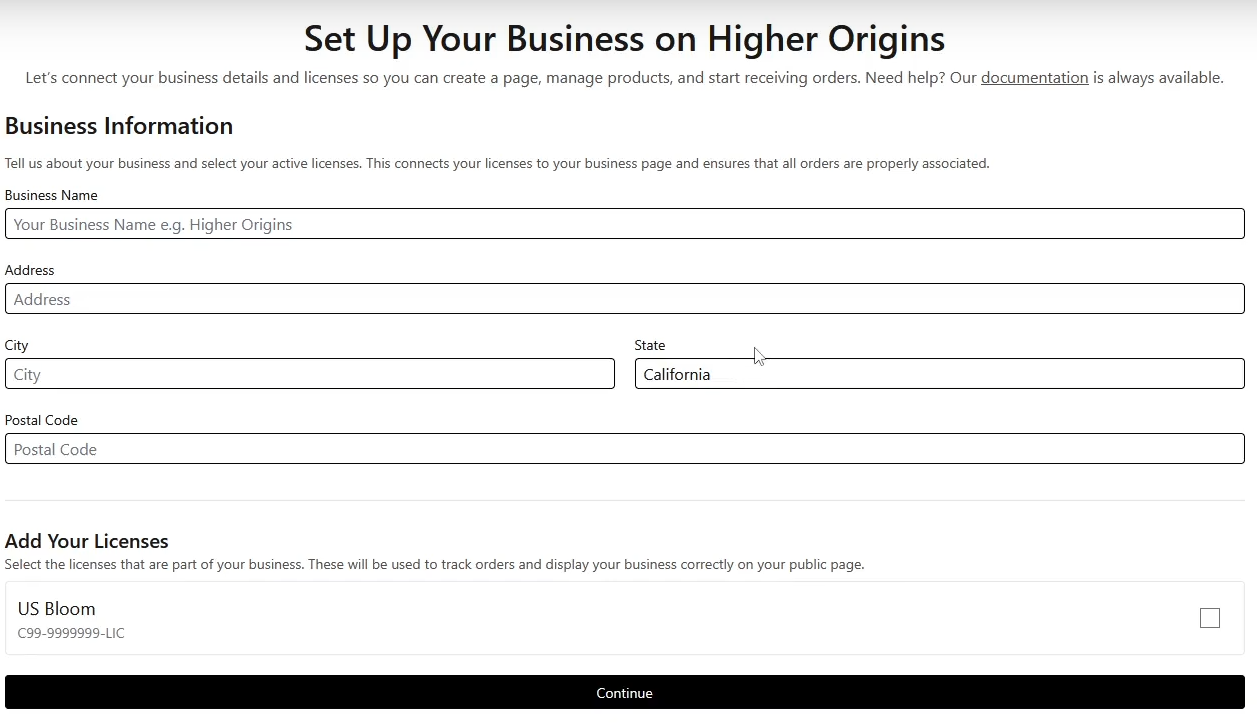
The box under "Add Your Licenses" lists all licensed facilities that are registered under your email with the DCC or with your METRC API key. Check all facilities that you plan on connecting to Higher Origins, and click [Continue] to move on to the Invite Users page.
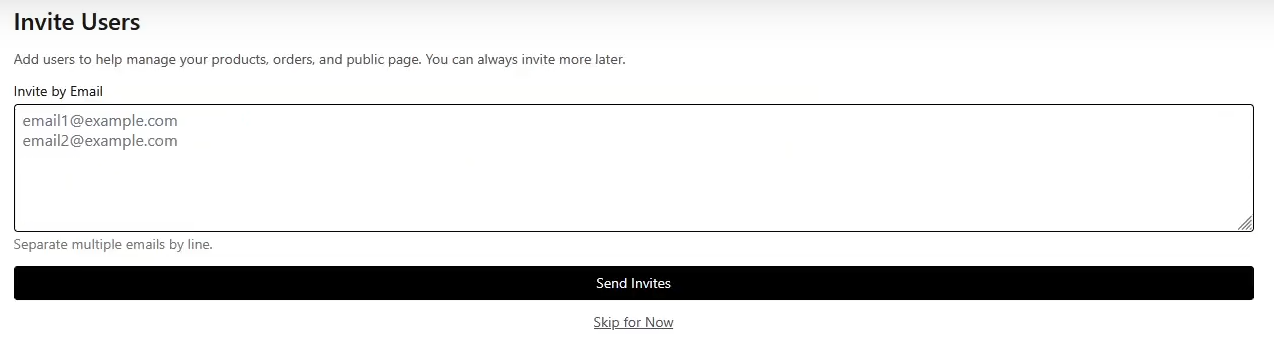
On the Invite Users page, you can enter the emails of any employees or collaborators that you want to be given access to your Higher Origins account. Enter their emails in the box, and they will receive an email prompting them to join your account. Once you have entered all the users you would like to add, click "Send Invites" to send the emails and move on to the next step, or skip this step for now, you can always invite users later on if you need to.
The next step is to fill out the information for your company profile. This is the page that your public presence on Higher Origins is based around.
Enter the Name of your business
Write a short description of what your business is and what it's all about, tell us your story! It's very important to highlight the unique selling points of what you do in this section.
If you have a website, enter the URL so people can find you there.
Upload a banner image. Show off what your business is all about! Ideally, try and keep images below 2000 pixels, and in landscape format.
Upload a profile image. This is your public face on Higher Origins, so it's best practice to use a square formatted image of your logo as your profile image.
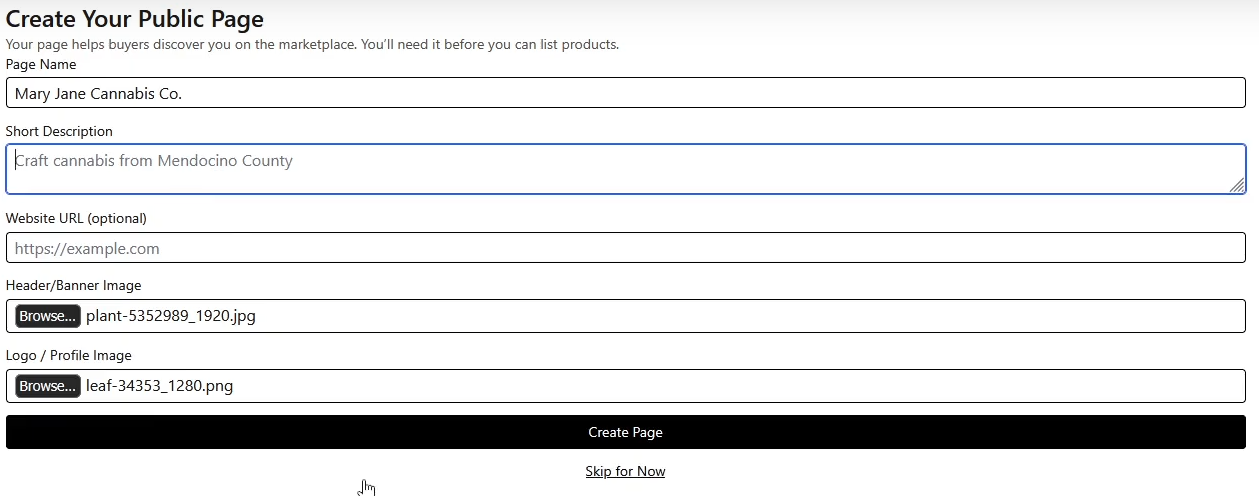
When finished, click Create Page to move on to the next step. You can also skip this step for now if you're in a hurry, but keep in mind that an incomplete public page will limit your ability to sell on the platform.
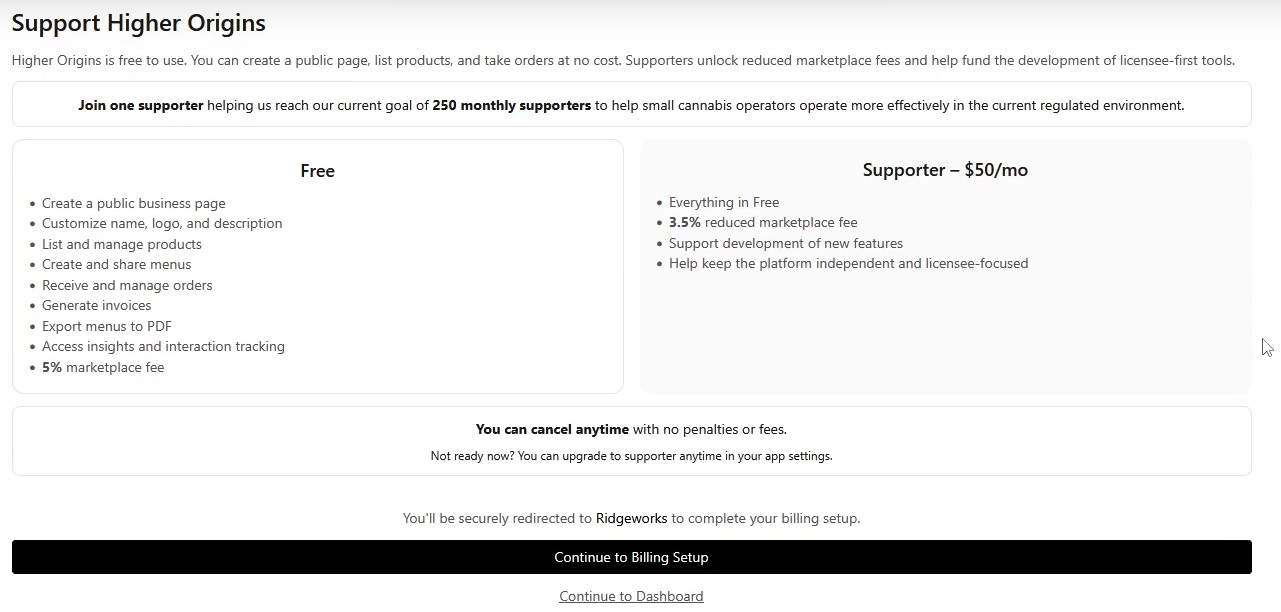
In this step, you can decide if you want to use Higher Origins for free, or if you would like to financially support us. Supporters help us keep the business running, so we greatly appreciate any financial support that you can provide. If you decide to support us, click Continue To Billing Setup to be transferred to our payment handling partner RidgeWorks to set up your billing info. If you want to use Higher Origins for free, click Continue to Dashboard to finish the signup process and start using Higher Origins.
Congratulations, you're all set up!
Next, check out these guides to get started using Higher Origins:
Set up your business profile
Add products
Create menus