Add an account to your pipeline
Find a licensed cannabis business in the Higher Origins directory or add one manually, then begin managing it in the Trading Partners pipeline.
Updated Sep 17, 2026 Source reviewed Sep 17, 2026 2 minute read
For: sales teamsaccount managersbusiness owners
Choose a source
Trading Partners offers two reliable paths. Search Directory when you want to start from an indexed California license record. Use Add Account when you already know the license number and account name.
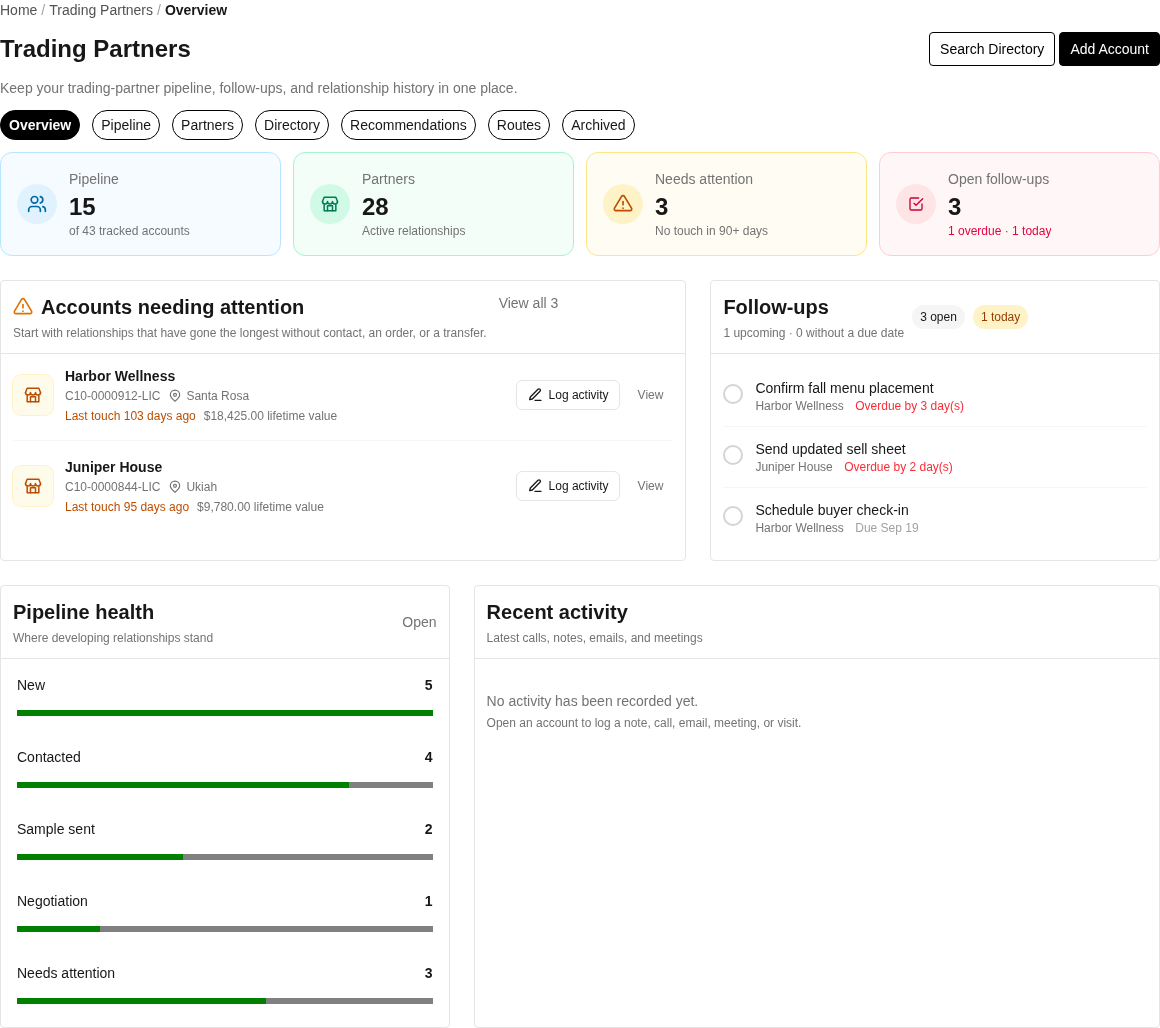
The Trading Partners overview highlights relationship health, pipeline stages, and follow-ups that need attention.
Add from the directory
Open Trading Partners and choose Directory or Search Directory.
Search for the business or license and open the matching prospect record.
Review the license number, name, location, and available contact context.
Choose Add to Pipeline.
Add an account manually
Open Trading Partners and choose Add Account.
Enter the California cannabis License Number and the account Name.
Choose Add to Pipeline.
Search the Directory, Pipeline, Partners, and Archived tabs before adding a record. Reusing the canonical account avoids split notes, contacts, tasks, and order history.
Set the relationship stage
A new account begins in the pipeline. Open it and update the stage as the relationship changes: New, Contacted, Sample Sent, Negotiating, Partner, Needs Attention, or Lost. Stage changes should reflect real sales work; placing an order does not replace deliberate pipeline maintenance.
Continue the relationship
Add contacts, notes, activity, and follow-up tasks. When appropriate, assign the account to a route, set pricing overrides, preview or send a menu, and review related orders. Use Archived for records that should leave active work without erasing their history.
Related guides
Trading Partners: understand contacts, activity, tasks, stages, routes, pricing, menus, and orders
Search California cannabis licenses: verify a license before creating the relationship
Create and share a menu: prepare an offer for outreach