Orders
Understand how Higher Origins organizes sales orders, buyer carts, fulfillment status, billing, payments, messages, and order history.
Updated Sep 17, 2026 Source reviewed Sep 17, 2026 7 minute read
For: sellersbuyersoperations
Overview
Orders are the commercial record for cannabis sales and purchases in Higher Origins. They can begin with a manual sales order, a menu cart, a marketplace cart, or a supported transfer workflow, then carry the buyer, seller, facility, products, quantities, prices, messages, invoice, payment, and status history.
An order does not replace Metrc inventory or transfer reporting. Inventory describes available stock, Transfers describe regulated movement, and the Order tracks the commercial agreement and billing work that connects the parties.
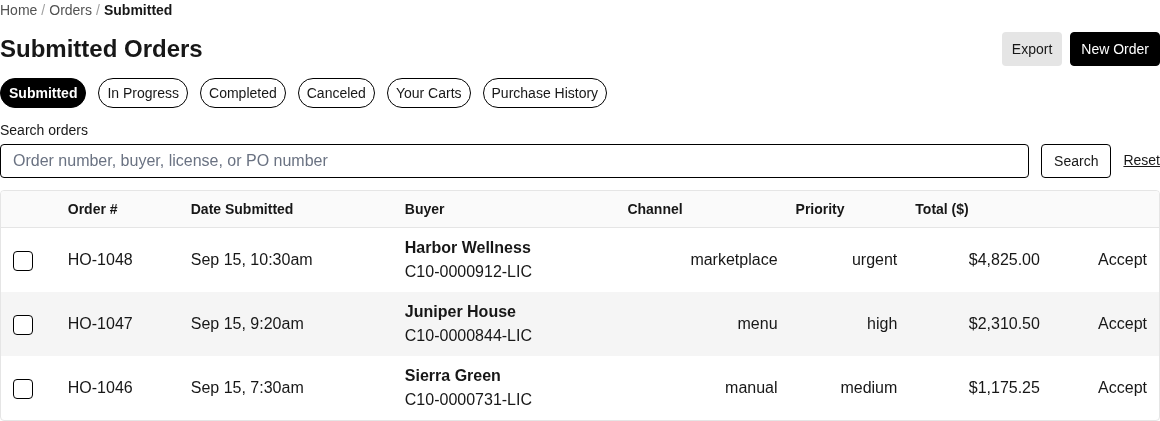
Submitted orders are ready for seller review; select one or more orders to approve them.
The selected business controls what appears. A seller sees orders owned by that business. A buyer sees carts and purchase records associated with the selected business's facility license.
An order can originate in the Marketplace, through a Menu, or as a Manual order entered by the seller. Each order keeps the buyer's contact and license details, products and prices, current status, invoice and payment information, messages, and a history of changes.
Find the orders you need
The tabs at the top of Orders separate seller work from purchases made as a buyer:
Submitted contains incoming seller orders that are waiting for review. Choose Accept on one order, or select several rows and choose Approve Selected.
In Progress contains seller orders with Approved, Processing, Fulfilled, or En Route status.
Completed contains seller orders marked Delivered.
Canceled contains seller orders with Denied, Canceled, or Rejected status.
Your Carts contains Draft orders where the selected facility is the buyer. You can open, submit, or delete a cart.
Purchase History contains the selected facility's submitted and later buyer-side orders. Choose Reorder to copy a previous purchase into a new Draft cart.
Use Search orders to find a seller order by order number, buyer, license number, trading partner, or PO number. In Your Carts and Purchase History, search by order number, selling business, or PO number. Export downloads the seller-side order list as CSV.
Seller and buyer views
When you are the seller
Higher Origins treats the selected business as the seller when that business owns the order. Seller controls include accepting submitted orders, setting fulfillment status, editing order details, managing line items, creating and sending invoices, recording payments, adding internal coordination notes, duplicating an order, and deleting eligible orders.
When you are the buyer
Higher Origins treats the selected business as the buyer when one of its facility licenses matches the buyer license on the order. Buyer controls include submitting or deleting a Draft cart, canceling a Submitted order, downloading invoice and purchase-order documents, editing eligible details, reading and sending messages, and reordering from Purchase History.
If an expected order is missing, first confirm the selected business or facility. Then check the seller status tab or the buyer-side Your Carts and Purchase History tabs.
Understand an order record
Open an order number to see its summary and working tabs. The header shows the current status and the trading partner. The overview includes:
Order Summary with merchandise totals, marketplace fees when applicable, and the amount charged or net to the seller.
Contact Information for the buyer contact attached to the order.
Order Details such as the PO number, Metrc manifest, payment terms, preferred terms, preferred delivery date, estimated delivery date, and distributor license when those values exist.
Items for products, variants, quantities, unit prices, notes, and order totals.
Billing for invoice totals, amount paid, balance due, due date, and payment history.
Messages for communication visible to order participants.
History for status changes and notes. Sellers also see Internal Coordination comments that are kept separate from buyer-visible messages.
Order lifecycle
The normal order path is:
Draft: a buyer cart that can still be changed, submitted, or deleted.
Submitted: the buyer has placed the order and the seller can review it.
Approved: the seller has accepted the order. Approval automatically creates an Open invoice.
Processing: the seller is preparing the order.
Fulfilled: preparation is complete and the order is ready for its next movement.
En Route: the order is in transit.
Delivered: the order is complete and moves to Completed.
A seller can use Set Status to choose Approved, Processing, Fulfilled, En Route, or Delivered. The detail page also provides contextual actions such as Mark as Fulfilled, Mark as En Route, and Mark Delivered. Denied, Canceled, and Rejected orders appear under Canceled.
Changing an order status does not currently reserve, fulfill, or release product inventory automatically. Review and update Inventory separately when the physical stock changes.
Create a manual sales order
Use a manual order when a seller needs to enter an order received outside a Higher Origins Marketplace or Menu flow. Choose New Order and complete these steps:
Select Trading Partner. Higher Origins fills available buyer defaults from the selected partner and contact.
Confirm the buyer's facility License Number, Name, Email Address, and Phone Number. These fields identify the buyer and are required.
Add a Message (Visible to Buyer) when the buyer should see context about the order. Use Internal Note for seller-only context.
Choose the Initial Status: Approved, Processing, Fulfilled, or En Route.
Choose a Priority: Low, Medium, High, or Urgent, then choose Next.
On the new order record, add the products, variants, quantities, prices, and line-item notes that make up the order.
If no trading partner exists for the entered license, Higher Origins uses the license record to create one. Creating a manual order also moves that trading partner to the Active pipeline stage and creates a contact when the named contact and email do not already exist.
Manage items and totals
Use the Items tab to add a product and optional variant, then enter its quantity, unit price, and note. Higher Origins recalculates line totals and the order total as items change. Sellers can edit or remove line items until the order is Delivered. A Delivered order keeps its item history read-only.
Duplicating and reordering serve different sides of the transaction. Duplicate Order creates a new seller-side Manual order in Approved status with copies of the line items. Reorder creates a buyer-side Draft cart with copies of the previous line items so it can be reviewed before submission.
Invoices and payments
Approving an order creates an Open invoice automatically. In Billing, review the invoice total, amount paid, balance due, due date, and payment history. A seller can choose Record Payment while a balance remains. Invoice status and balance update as payments are recorded.
Download Invoice creates a copy for the current order.
Email Invoice lets the seller send the invoice to an available trading-partner contact.
Download PO creates the purchase-order document.
Generate Invoice is available to the seller when an eligible order does not yet have an invoice.
Messages, internal notes, and history
Use Messages for communication that order participants should see. Use Internal Coordination in History for seller-only operational notes. History records status changes, dates, public notes, and internal notes so the team can understand how the order progressed.
Submitting saves an order to the seller's queue but does not send an automatic submission email. Use Messages when the other party must receive operational context. The current order-status change path does not send its own status notification.
Troubleshooting
An order is missing
Confirm the selected business or facility, clear the search, and check the tab that matches the order's current status. Buyer carts and purchases appear in separate tabs from seller orders.
Items cannot be edited
Delivered orders are read-only for line items. Check the status shown at the top of the order.
There is no invoice
An invoice is created automatically when an order is approved. If an eligible seller order has no invoice, open Billing and choose Generate Invoice.
A buyer cannot open the order
The selected buyer business needs a facility license that matches the buyer license stored on the order. Switch to the correct business or verify the order's buyer license details.
Focused guides
Place an order from a menu: understand how a buyer submits a new menu order
Create and share a menu: prepare the offer that can create a submitted order
Related resources
Trading Partners: manage the buyer organizations and contacts used by manual orders
Products: maintain the catalog and variants used as line items
Inventory: track physical stock separately from order status
Menus: manage one source of buyer carts and submitted orders
Marketplace: manage the other product discovery and ordering channel
Transfers: connect regulated movement records to commercial work