Accept an order, send an invoice, and record payment
Review a submitted order, approve it, email its invoice, and record an external payment in Higher Origins bookkeeping.
Updated Sep 17, 2026 Source reviewed Sep 17, 2026 4 minute read
For: sellersfarmsbrandsorder managersbookkeepers
Outcome and audience
Use this guide if you manage sales or bookkeeping for the seller. At completion, the order will be Approved, its invoice will have been emailed separately, and Higher Origins will show the external payment you recorded.
Before you start
Review the buyer license, purchasing facility, delivery details, product variants, quantities, unit prices, seller minimum, and order total before approval.
Resolve price or availability questions with the buyer first. Approval creates an invoice from the current order total.
Recording payment is bookkeeping only. Receive or confirm the money through your bank, check, cash, card, or other external process before entering it.
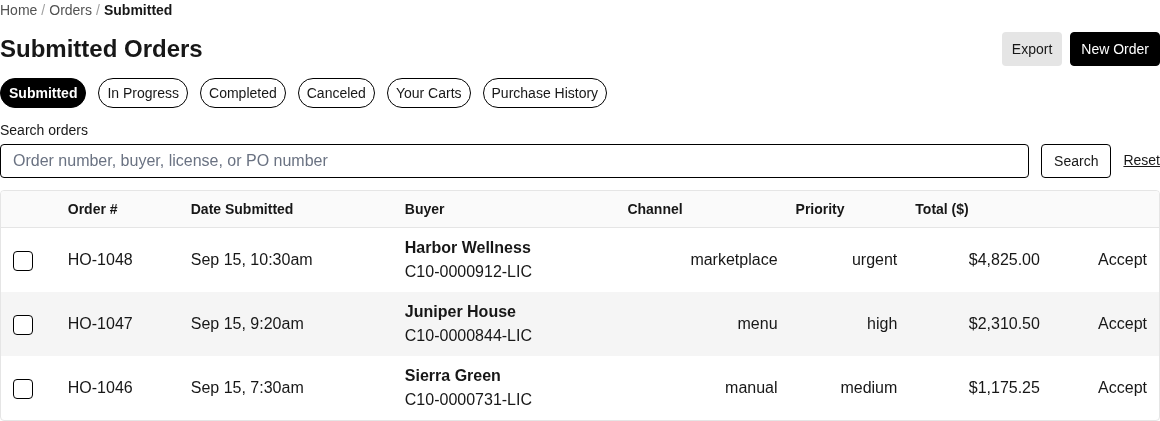
Submitted orders are ready for seller review; select one or more orders to approve them.
Steps
Open Orders and choose Submitted. Open the order. Review Buyer, Items, delivery dates, messages, internal notes, and the total. For the fictional example, confirm North Coast Retail ordered 12 cases at $216.00 each for a $2,592.00 total.
Choose Approve Order and confirm. Expected result: the status becomes Approved and Higher Origins creates one Open invoice for the order total. Approval does not email it automatically.
Open the Billing tab and verify invoice number, seller, buyer, line items, total, amount paid, and balance. The automatically created invoice can have no due date because the approval path does not supply one.
Open the Invoice menu and choose Email Invoice. Select or enter the intended recipients, check the message, and send. Expected result: Higher Origins sends an email with the invoice PDF attached. This action does not mark the invoice paid or change order status.
After the seller has actually received money, open Billing and choose Record Payment. Enter an Amount of at least $0.01, Method, and Payment Date. Methods are Cash, Check, Wire, Credit Card, or Other. Add Reference and Notes when they help reconcile the transaction.
Choose Record Payment. Expected result: the payment appears on the invoice and Amount Paid increases. When cumulative recorded payments reach the invoice total, invoice status becomes Paid; a partial payment leaves a balance.
Move the order through Processing, Fulfilled, En Route, and Delivered only when those business events occur. Choose Set Status, select the status, enter Status Date, and choose Update Status. Status changes currently do not reserve, fulfill, or release inventory and do not send their own order-status notification.
Completion check
The order status is Approved or the later status that matches the real business event.
The invoice status and balance agree with the payments actually received.
The invoice email went to the intended recipients, and the order history contains the relevant actions.
Inventory and transfer records still require their own operational updates; no order status performs those changes automatically.
Fees and external effects
Marketplace fee fields are seller-side reporting values and do not change the buyer invoice total. The displayed fee can disagree with line-level fee snapshots, especially after mixed Brand and non-Brand edits. Confirm the applicable commercial terms with Higher Origins before relying on the displayed fee for settlement.
The invoice payment record does not initiate ACH, card, check, cash, or wire movement. Marketplace fee fields affect seller net reporting. A configured distributor fee can accrue when an order reaches Delivered, but it does not modify the customer invoice in this workflow.
If something does not match
If approval fails, check whether the order is still Submitted and whether another approval already created the invoice.
If Email Invoice has the wrong recipient, close the modal, correct the order or contact details, and reopen it before sending.
If the invoice remains Open after payment, compare the sum of recorded payments with the invoice total and check the payment amounts for entry errors.
If an automatic order-status email was expected, use a direct buyer message or the invoice email. The Order Status preference is visible, but status dispatch is currently disabled.
Next step
Orders, invoices, payments, and fees: check status, invoice, payment, fee, and notification rules
Orders: review the complete buyer and seller lifecycle
Report an Issue: report a repeatable invoice, payment, or status problem with the order ID and timestamp
Contact Higher Origins: use public support when Issues is unavailable