Products
Manage product identity, lifecycle, variants, media, inventory links, pricing, labels, tags, and sharing in Higher Origins.
Updated Oct 19, 2026 Source reviewed Oct 19, 2026 5 minute read
For: sellersbrand managersoperations
Overview
Products are the reusable cannabis catalog layer in Higher Origins. A product defines the identity buyers recognize, while variants, prices, media, tags, inventory relationships, and lifecycle state determine how that product can appear and be sold.
Inventory records describe the available physical stock. Menus curate selected products for a particular audience, Marketplace supports broader discovery, Orders preserve the commercial transaction, and Studio can reuse product and batch values in labels or other assets.
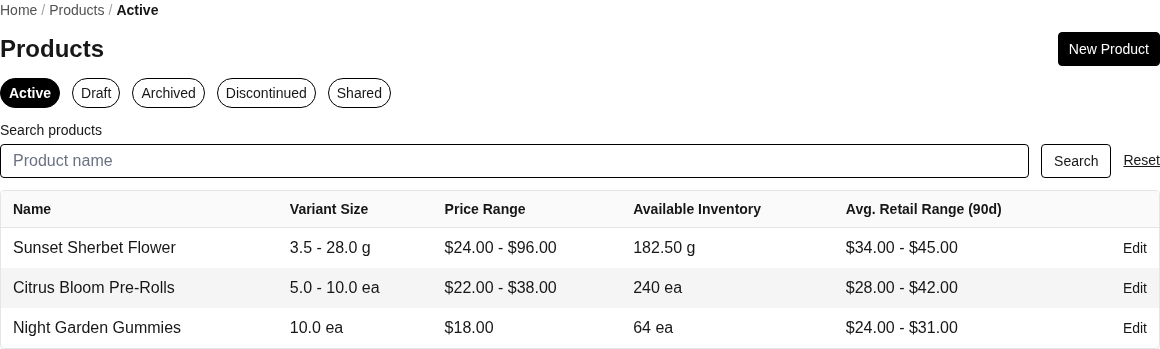
Use Products to find active, draft, archived, discontinued, and shared products.
Open Products for the selected business.
Find and organize products
Active contains products available for normal catalog work.
Draft contains products that are still in setup.
Archived retains products removed from active work without erasing their history.
Discontinued identifies products the business no longer offers.
Shared contains products another business has shared with the selected business.
If Avg. Retail Range (90d) shows Preparing prices or Prices unavailable, use Refresh to try again. You can keep working with the product while those prices are unavailable.
Use Search to narrow the list and Reset to clear it. Select New Product to begin the guided setup. Open an existing product to work in Overview, Variants, Inventory, Media, Tags, Pricing, Labels, Shares, and Advanced.
Create and publish a product
Details requires the product name, category, strain variety, and type. Descriptions, distributor details when they do not apply, and lineage parents are optional. Search existing strain varieties before creating a new one.
Media uploads product images. Select a primary image to control the main presentation used elsewhere.
Inventory creates or links stock so the product can participate in availability and ordering workflows.
Review & Publish shows the product before publication. Publish Product completes setup and moves the product to Active.
A product and an inventory record are different. The product describes the item to customers; inventory records the stock, lots, packages, batches, and compliance data that can fulfill it.
Variants
Variants represent distinct sellable configurations such as package size, unit count, weight, or other option values. Add one manually, use a variant template, or reuse recent values. You can update or delete variants from the Variants tab. Menus, pricing, order lines, inventory links, labels, and Studio data can refer to a specific variant, so review those relationships before removing one.
Inventory and media
On the Inventory tab, Add Inventory opens Link Inventory Items. Search existing items by lot number, name, or SKU, select the intended rows, and choose Link Selected Items.
Unlink removes the product relationship without deleting the inventory item. Create or import the stock in Inventory before linking it here.
Upload Media adds images to the product. Make Primary changes the image displayed first. Delete removes an image from this product after confirmation.
Tags, pricing, and shares
Tags save internal or discovery labels associated with the product.
Pricing can add an override for a buyer license or a region. Edit the applicable override or delete it when the exception should stop. Overrides can affect prices presented in eligible sales workflows.
Shares grants another business access to the product record. Revoke removes that share. Shared products remain distinguishable from products owned by the selected business.
Labels
Labels can be previewed as front, back, or bare layouts. Choose a variant and the required dimensions, check the preview, then export the label PDF. Product, variant, brand, and compliance values used by a label come from the saved product and its related data; correct those records before regenerating an export.
Lifecycle and deletion
Archive removes a product from ordinary active work while retaining it for reference.
Discontinue marks a product that is no longer offered.
Activate returns an eligible archived or discontinued product to active use.
Delete performs the product deletion workflow. Review inventory, menu, order, share, and label relationships first because historical or linked use can limit what should be removed.
Common problems
If a product is missing from a menu, confirm that it is Active, has the intended variant, and was added to that menu. If it is missing from Marketplace search, confirm Active status and clear buyer filters; zero available quantity sorts after in-stock products but does not currently hide an Active product.
If an image is wrong elsewhere, check which media item is Primary.
If a price differs for one buyer, check buyer-license and region overrides before changing the base variant price.
If label data is incomplete, verify the selected variant plus its product and inventory or batch data.
Focused guides
Create and publish a product: add details, the first variant, media, inventory, and publish
Related resources
Inventory: connect catalog records to stock and compliance data
Menus: present selected products, variants, and prices to buyers
Marketplace: make eligible products discoverable and orderable
Orders: see how products and variants become transaction line items
Studio: use product data in labels and other generated designs