Create a product, add variants, and link available inventory
Create a product record, define sellable package variants, publish it, and connect available cannabis inventory without changing Metrc.
Updated Sep 17, 2026 Source reviewed Sep 17, 2026 4 minute read
For: farmsbrandscatalog managersinventory managers
Outcome and audience
Use this guide to turn product information and physical inventory into a product that can be placed on menus or found in the Marketplace. The example is fictional: Redwood Valley Flower Co. Lemon Fuel, sold as 3.5 gram jars and 1 pound bulk flower.
Before you start
Choose the product Type carefully. Wholesale, Retail, and Brand setup paths ask for different initial inventory and lab fields.
Prepare a square or landscape product image. Higher Origins does not enforce an image dimension or aspect ratio, and product cards may crop an image to fit their container.
For Retail or Brand setup, prepare Batch Number, Packaged Date, Testing Lab License, Lab Test Date, THC %, CBD %, Total Cannabinoids %, and the lab certificate PDF required by the form.
Know whether the source inventory was entered in Higher Origins or imported from Metrc. Linking does not edit the Metrc package.
Steps
Open Products and choose New Product. Enter Name, Select Category, Strain, and Select Type. For the example, use Lemon Fuel, Flower, Lemon Fuel, and Brand. Add an accurate Short Description and Description when they help buyers understand the product.
Complete the first variant in Product Details. The flow names it Lemon Fuel from the product Name. Enter Quantity 3.5, Measure Unit grams, Min Quantity 12, and Price $18.00. Quantity describes the contents of one variant; Min Quantity describes the smallest order quantity. You can rename or edit the default variant after publishing.
Continue to Media Upload. Upload at least one image, then choose Make Primary on the image that should appear first. You can keep no more than ten product images and one video. Prepare a video no longer than the 15 seconds recommended by the interface.
Complete Initial Inventory with the fields shown for the product type. Use the actual inventory quantity and matching unit. Continue to Review & Publish and choose Publish Product. Expected result: the product status becomes Active.
Open the product and choose Product setup > Variants. On the Lemon Fuel row, choose Edit, change Name to 3.5 g Jar, keep Active and Default selected, and choose Save. Then choose Add Variant. Add 1 lb Bulk with Quantity 1, Unit Pounds (lb), Min Quantity 1, Price $650.00, and Active selected, then choose Save. Add SKU only if your business uses one. Expected result: both variants appear and 3.5 g Jar is marked Default.
Open the product's Inventory tab and choose Add Inventory. The Link Inventory Items window opens. Search by the full package number, lot number, inventory name, or SKU. Select the available items that belong to this product and choose Link Selected Items. Expected result: the linked inventory rows appear on the product.
Review Product Details, Variants, Media, Inventory, and Pricing. Confirm that quantity units agree. For example, do not attach a pounds-based package to a 3.5 gram price without defining the sellable conversion in a variant.
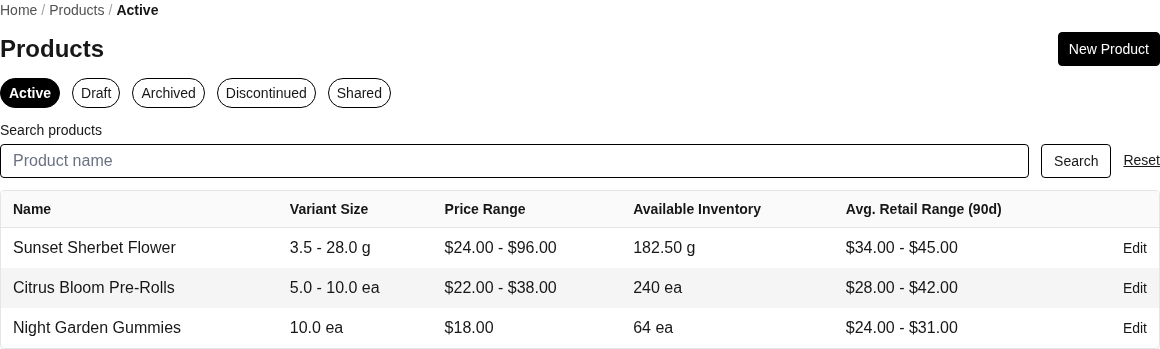
Use Products to find active, draft, archived, discontinued, and shared products.
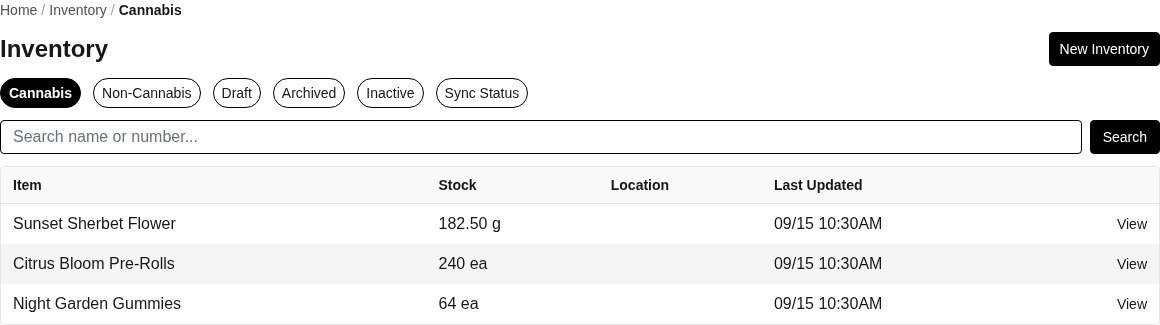
Use Inventory to find stock, separate cannabis and non-cannabis records, review lifecycle states, and inspect optional integration sync status when connected.
Completion check
Products > Active shows Lemon Fuel with the intended primary image and business identity.
The Variants tab lists 3.5 g Jar and 1 lb Bulk with the intended prices, units, minimums, and active state.
The Inventory tab lists the selected package or inventory rows and their current available quantity.
Opening the product in Marketplace or adding it to a menu shows the intended variant names and price source.
What this changes
Publishing changes the product to Active. Variant creation adds independent sellable package choices. Inventory linking associates Higher Origins product and batch records with inventory; it does not change Metrc quantity or reserve inventory for a cart. A later Metrc sync can refresh Metrc-owned quantity and lab fields while preserving Higher Origins product links.
If something does not match
If no inventory appears in Link Inventory Items, check Inventory for the selected business, search by the complete tag, and confirm the record has available quantity.
If the wrong variant appears first, set the intended variant as Default on the Variants tab.
If a required lab value is missing, correct the source batch or Metrc package, sync if applicable, then review the product batch again.
If the product is active but hard to find, use the Marketplace troubleshooting guide and check filters, product type, and business page identity.
Next step
Set up your farm or brand and publish your first menu: place the product on a buyer-ready menu
Product fields, media, units, and labels: look up field rules and label data sources
My product is missing from the marketplace: diagnose publication and discovery problems