Set up your farm or brand and publish your first menu
Create a licensed business workspace, publish a product, build a wholesale menu, and test the buyer link from start to finish.
Updated Sep 17, 2026 Source reviewed Sep 17, 2026 5 minute read
For: farm ownersbrand ownersbusiness administrators
Outcome and audience
Use this guide if you own or administer a small California farm or brand and want a buyer-ready wholesale menu. At the end, your business workspace will have a licensed facility, one active product, and a menu link that reaches the buyer license check.
Before you start
Have access to the email used for the Higher Origins account, the business name and address, and each California license you are authorized to connect.
Prepare one ordinary product example. This guide uses the fictional product Sunlit Farms Lemon Fuel Flower, a 1 pound wholesale variant priced at $650 per pound.
Prepare at least one product image. Higher Origins accepts image uploads and requires at least one image in product setup.
A Metrc connection is optional for this workflow. Connect it when you want Higher Origins to import package inventory; you can also create inventory in Higher Origins.
Membership is not required for the first active menu. The current non-member limit is one active menu.
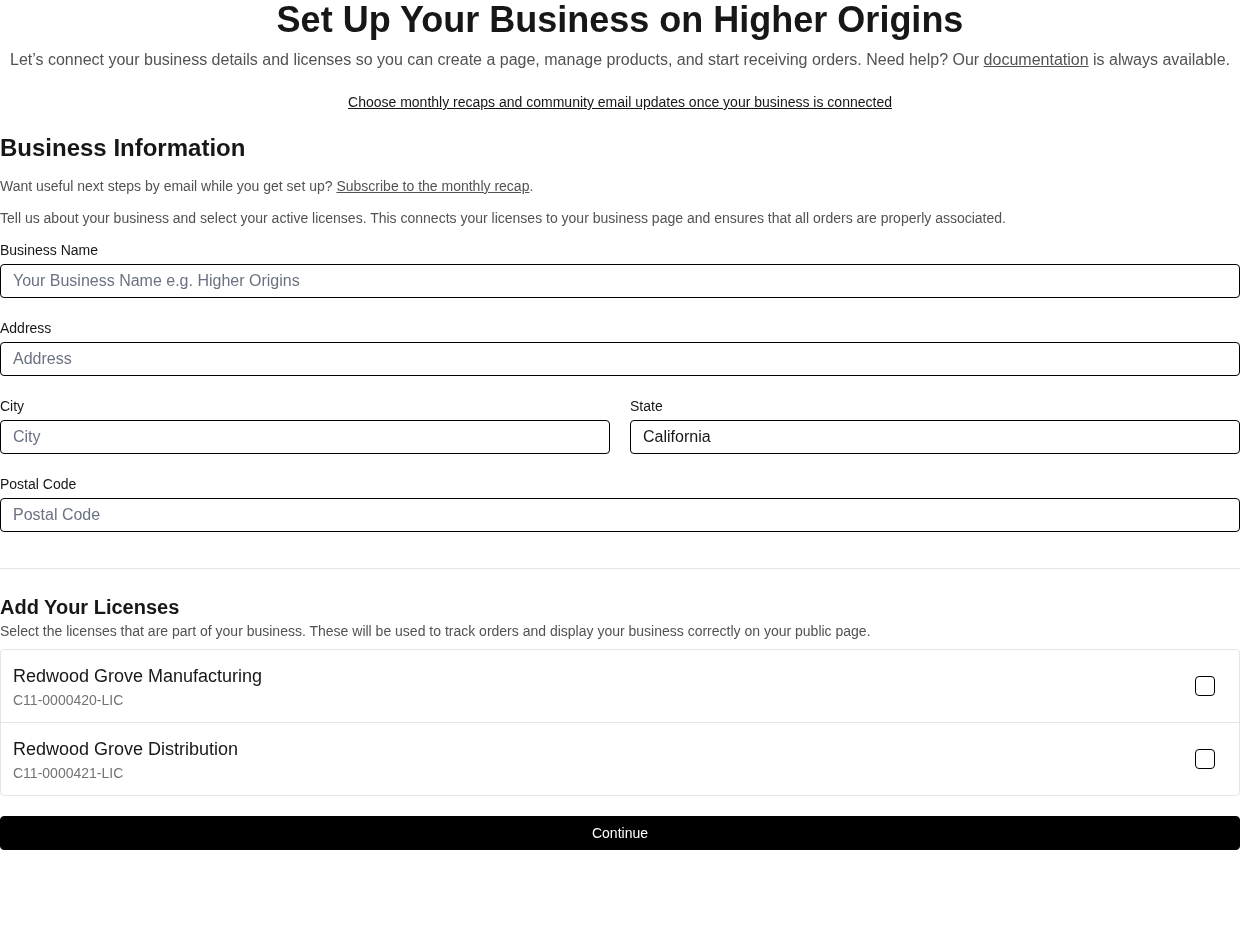
Onboarding connects the selected business details and licenses before you invite teammates and publish a public page.
Steps
Sign in and finish onboarding. Open Dashboard, then follow Verify Email, Business Information, Invite Users, Create Public Page, and Support Higher Origins. Select the licenses that belong to this business. Expected result: Dashboard opens with the new business selected in the header.
Check the selected business before adding records. The business selector in the app header controls which products, inventory, menus, and orders you are changing. Expected result: the farm or brand name shown in the header matches the workspace you intend to publish.
Open Products and choose New Product. Enter Name, Select Category, Strain, and Select Type. For the example, use Sunlit Farms Lemon Fuel Flower, Flower, Lemon Fuel, and Wholesale. The setup flow uses the product name for the first variant. Enter Quantity 1, Measure Unit pounds, Min Quantity 1, and Price $650.
Continue to Media Upload and upload at least one clear product image. In Initial Inventory, enter Initial Quantity 10 for this wholesale example. Unit Cost and Received Date are optional. Continue to Review & Publish and choose Publish Product. Expected result: the product status is Active and it appears under Products > Active. Retail and Brand products also require the compliance batch, packaged date, lab, cannabinoid, and lab-result PDF fields shown by the form.
Open Menus and choose New Menu. Enter a clear buyer-facing name such as Fall 2026 Farm Availability and an optional description, then choose Save. Expected result: the new menu detail page opens.
On the menu, choose Add Product. Select Sunlit Farms Lemon Fuel Flower and add it. Higher Origins adds the product variants to the menu. Expected result: the Products tab lists the product and its Sunlit Farms Lemon Fuel Flower variant.
Open Settings and select Public, Private, or Unlisted. The button applies the status immediately. Use the visibility label for organization only; opening the current buyer link still requires a buyer facility license and these status values do not restrict direct-link access.
Choose Open Menu to test the buyer experience. A signed-in buyer selects a Facility License; a visitor without a session enters a California facility license number. Ask the intended buyer to use their active facility license, or use an authorized test-buyer license in a non-production environment. Expected result: the menu lists the product, variant, quantity controls, and buyer price.
Return to the menu and use Copy Link, Download QR, or Export PDF to share it. Forwarding the link gives the recipient the same license gate; it does not bypass verification.
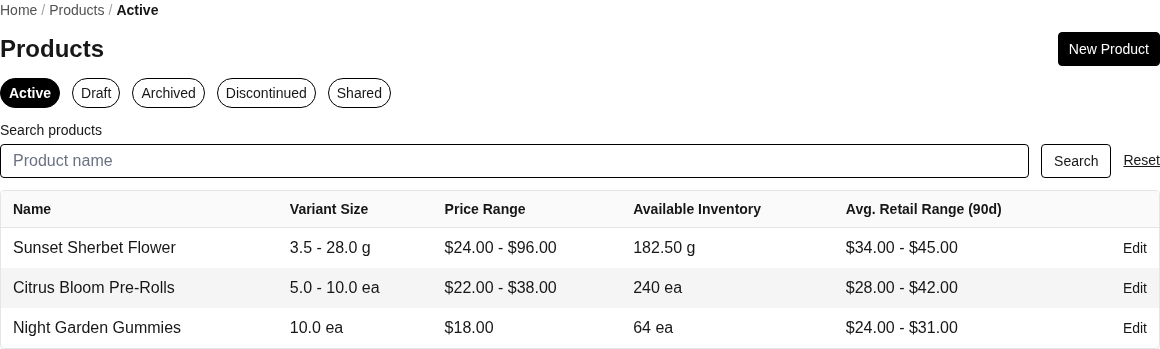
Use Products to find active, draft, archived, discontinued, and shared products.
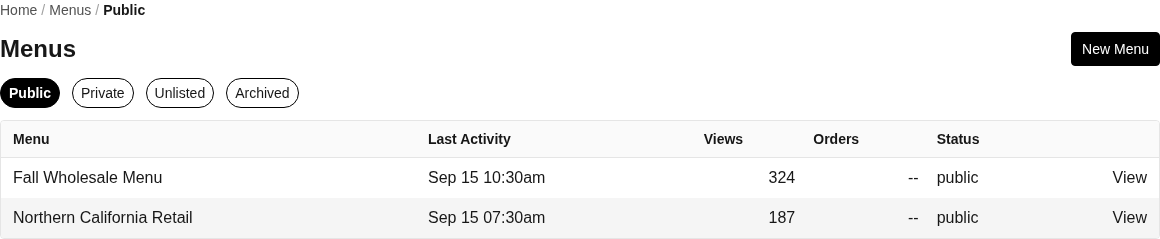
Menu visibility tabs keep public, private, unlisted, and archived catalogs distinct.
Completion check
Products > Active shows the product with the intended business, primary image, variant, and price.
Menus shows the menu under its selected status tab and the menu detail lists the product.
Open Menu reaches the buyer facility-license check, and completing that check displays the expected product and price.
A copied link and downloaded QR code point to the same stable menu URL.
What this changes
Publishing changes the product status to Active. Adding it to a menu creates a menu-product relationship and does not move, reserve, or edit inventory. Opening or sharing the menu can create interaction records used by Insights. This workflow does not write products, menus, prices, or orders back to Metrc.
If something does not match
If Publish Product is unavailable, return to each setup step and supply the required product fields, first variant, image, and inventory fields for the selected product type.
If the menu is empty, open its Products tab and confirm the product was added and remains Active.
If a buyer cannot pass the menu gate, confirm the facility license number and the seller's menu link. Use the menu-access troubleshooting guide for the exact checks.
If the app blocks another active menu, change an existing menu to Unlisted if its direct link may remain usable, permanently delete an unused menu from Settings > Danger Zone, or review Membership. Settings does not currently expose an Archive control.
Next step
Create a product, add variants, and link available inventory: expand the product and connect sellable stock
Menu access and lifecycle: check exactly what the current visibility settings and buyer gate do
Someone cannot open my menu: diagnose a buyer access problem