Create your account and complete onboarding
Create a Higher Origins account, verify your email, connect a licensed cannabis business, invite teammates, and prepare its public page.
Updated Sep 17, 2026 Source reviewed Sep 17, 2026 3 minute read
For: new usersbusiness ownersadministrators
What you will set up
Onboarding connects your personal login to a business workspace. That workspace owns the products, inventory, menus, orders, public page, and team access you manage in Higher Origins.
Have access to your email, the business address, and the license numbers you are authorized to manage. A Metrc user API key is optional during sign-up.
1. Create your account
Open Business Sign Up. Enter your name, email address, phone number, and password. If you already have a Metrc user API key, you can enter it now; otherwise leave the optional field empty.
Use the email associated with your California Department of Cannabis Control licensing records when possible. Higher Origins can use that address during Metrc-free onboarding to find licenses connected to you.
2. Verify your email
Open the verification message and follow its link. The onboarding screen checks your verification status and continues automatically after confirmation. Choose Resend verification email if the message does not arrive, and check spam or filtered folders before requesting another copy.
3. Connect the business and licenses
Enter the business name, street address, city, state, and postal code. Select each active license that belongs to this business, then choose Continue. License selection associates later orders and public business information with the correct regulated entity.
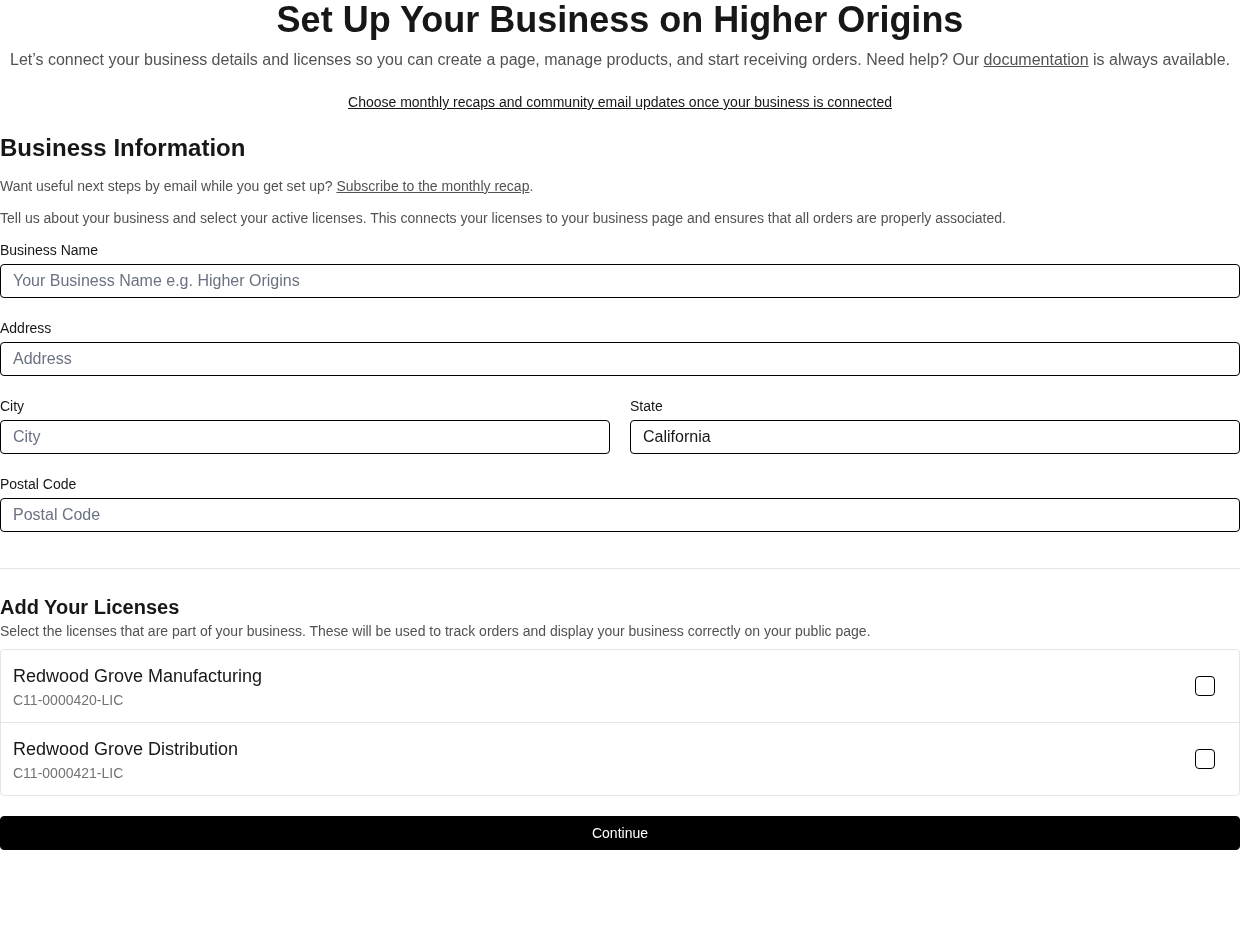
Onboarding connects the selected business details and licenses before you invite teammates and publish a public page.
If no licenses appear, confirm that the email matches the licensing record or that your Metrc account has owner access. The screen can offer Add Email Address or Update Metrc API Key so you can correct the lookup without starting over.
4. Invite teammates
Enter one teammate email address per line and choose Send Invites. Choose Skip for Now if you want to finish onboarding first. You can invite, resend, or remove invitations later from Business Settings.
5. Create the public page
Enter a page name and short description. You can also add a website URL, header image, and profile image. The page helps buyers identify your business and is required before products can be listed. Choose Skip for Now if the public content is not ready.
6. Choose whether to support Higher Origins
Review the Free and Membership choices. Membership is optional during onboarding and can be changed later in settings. Submit the selection to finish and open the app.
When onboarding is complete
Confirm the selected business in the app header before creating records. Start with the catalog, a wholesale menu, or the public page depending on how your business plans to use Higher Origins.
Related guides
Account and business: understand workspaces, facilities, permissions, and account settings
Find and connect your Metrc API key: connect Metrc now or after onboarding
Invite teammates: manage invitations after setup
Edit your public page: finish the public identity buyers see