Add and organize page links
Add websites and social destinations to your Higher Origins public links page, then edit, delete, copy, and reorder them.
Updated Oct 22, 2026 Source reviewed Oct 22, 2026 2 minute read
For: brand managersmarketing teamsbusiness owners
Add a link
Open Your Page and choose Links.
Enter a Link Title that tells a visitor what they will open.
Enter the complete URL, including https:// when the destination uses it.
Choose Add Link and open the saved destination to verify it.
Titles support up to 120 characters and URLs up to 2,048 characters. Use short labels such as Website, Instagram, Retail Menu, or Contact Sales instead of pasting the destination as the title.
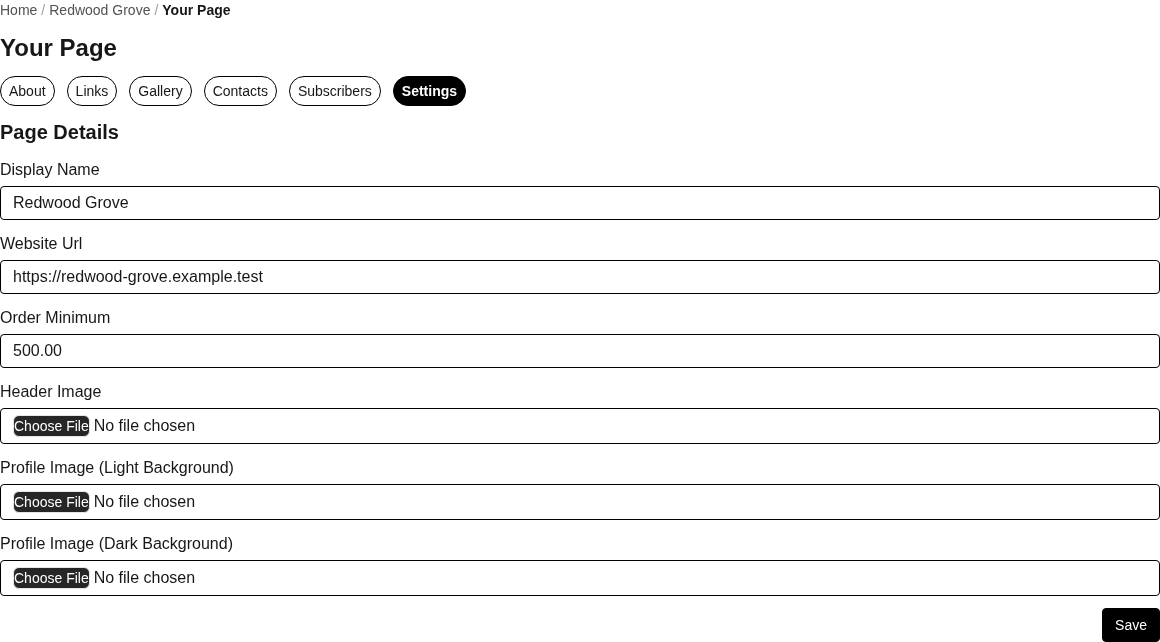
Your Page settings control the selected business's public identity, website, order minimum, and page images.
Edit, remove, and reorder
Edit changes the saved title or destination.
Delete removes the destination from the public link collection.
The Links tab shows 50 entries at a time. Use Previous and Next to browse the collection. Drag links on the current page, then save the order; links on other pages keep their relative order. Use the move controls at a page boundary to move a link to the neighboring page.
Changes to the collection affect the public links page immediately after they are saved. If another teammate changed the list first, an outdated reorder can be rejected. Refresh, confirm the current sequence, and apply the order again.
Share and review
Use Copy URL to copy the public links address, or View Public Page to inspect the wider business page. Test every destination in a private browser window so you see what a visitor without your Higher Origins session will see.
Link quality checklist
Use an official destination controlled by the business.
Preserve case-sensitive paths, query values, and fragments required by the destination.
Remove campaigns, old menus, and social profiles that are no longer maintained.
Place the destinations most useful to cannabis buyers near the top.
Related guides
Edit your public page: maintain the description, website, images, and order minimum
Your Page: understand the complete public page workspace
Create and share a menu: create a current wholesale destination worth linking