Connect Metrc and confirm your inventory imported correctly
Save a Metrc user API key, import facilities, start synchronization, and verify items, packages, quantities, lab data, and transfers.
Updated Sep 17, 2026 Source reviewed Sep 17, 2026 4 minute read
For: farm operatorsinventory managersbusiness administrators
Outcome and audience
Use this guide if you manage inventory for a California licensed business. At completion, Higher Origins will have a saved Metrc connection, at least one imported facility, and visible synchronization evidence for the records your Metrc user can access.
Before you start
Use your own Metrc user account. Its API key can read only the facilities and resources allowed by that user's Metrc permissions.
Treat the key like a password. Do not paste it into email, chat, screenshots, issue descriptions, or documentation.
Generating a new key in Metrc deactivates the old key. Plan to update every integration that uses it before rotating.
Steps
In Metrc, open the user menu in the upper-right area and choose API Keys. Copy the current user API key. If no current key exists, generate one only after confirming that replacing the old key will not interrupt another connected system.
In Higher Origins, select the correct business, open Business Settings, and choose Metrc. Paste the key into Metrc API Key and choose Save. Expected result: the Metrc section loads facilities available to that key instead of showing an invalid-key error.
Under Metrc Facilities, import each facility that belongs in this Higher Origins business. Confirm the facility name and license number before importing. Expected result: the imported facility is connected to the business and can receive package sync work.
Importing a facility automatically queues its item and package backfill. Choose Schedule Full Import when you need supported historical data; the backfill is capped at the most recent two years. Choose Sync Transfers separately when you need transfer records. Higher Origins also schedules item, package, lab, and transfer synchronization each hour.
Open Inventory and choose Sync Status. Find the relevant resource row. Expected values are running while work is active, ok after successful completion, or error with Last Error text when a job failed. Record the Last Sync timestamp.
Open Inventory > Cannabis and search for a known Metrc item or package number. For the fictional check, search package tag 1A406030000000100000042. Compare facility, package state, available quantity and unit, source label, and lab information with Metrc.
Open Transfers and check a known inbound or outbound transfer if you ran Sync Transfers. Transfer synchronization is separate from item and package synchronization.
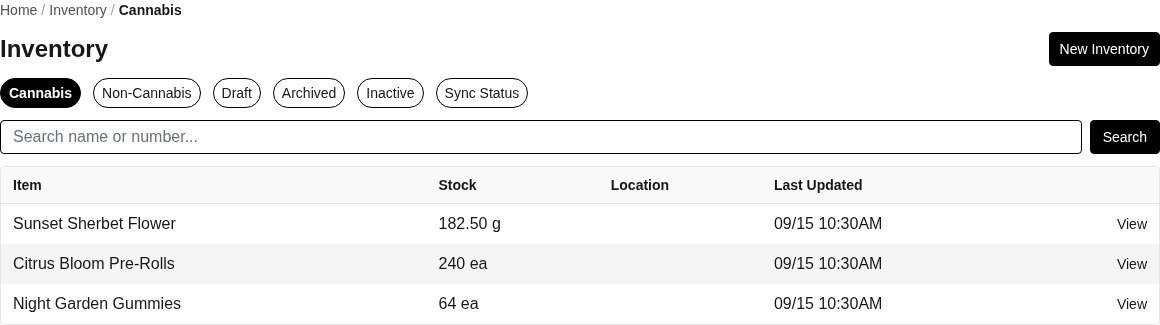
Use Inventory to find stock, separate cannabis and non-cannabis records, review lifecycle states, and inspect optional integration sync status when connected.
Completion check
Inventory > Sync Status shows a recent successful row for the resource you synced.
A known package appears under the correct selected business and facility with the expected quantity and unit.
Lab results or source-label fields appear when Metrc returned them for that package.
The Transfers workspace contains the expected transfer only after a transfer sync has completed.
What sync changes
A connected Metrc user key can import supported facilities, items, packages, package states and quantities, source labels, lab results, transfers, delivery data, transporters, and package wholesale prices. Higher Origins reads those records and does not provide a supported writeback workflow.
Correct Metrc-owned fields in Metrc, then sync again. Product links, Higher Origins product names, menu membership, partner pricing, and order records remain Higher Origins work. No documented Higher Origins action writes a correction back to Metrc.
If the import is incomplete
If no facilities appear, confirm that the saved key belongs to a Metrc user with access to the expected facility and that the selected Higher Origins business is correct.
If Sync Status says error, copy the resource name, Last Sync time, and Last Error text before retrying.
If a package is missing but items imported, confirm the correct facility was imported, wait for its queued backfill or the next hourly sync, and search by the complete package tag. Use Schedule Full Import when the missing record is historical.
If older history is absent, remember that the full backfill is capped at two years.
Next step
My Metrc package did not import: work through facility, status, package-state, and timing checks
Create a product, add variants, and link available inventory: connect imported inventory to a sellable product
Metrc synchronization and data ownership: review imported entities, schedules, overwrite rules, and supported boundaries